 ViceFx TeamSep 7, 20242 min read110 views
If you’re encountering the “We couldn’t automatically sign you in” error when launching RedM, you’re not alone. Many players, including myself, have faced this frustrating issue. Fortunately, there’s a straightforward fix that has worked for me and others. Follow the steps below to resolve the issue and get back into the game.
Launch RedM, When the game starts, you’ll see the error message:
“We couldn’t automatically sign you in.”
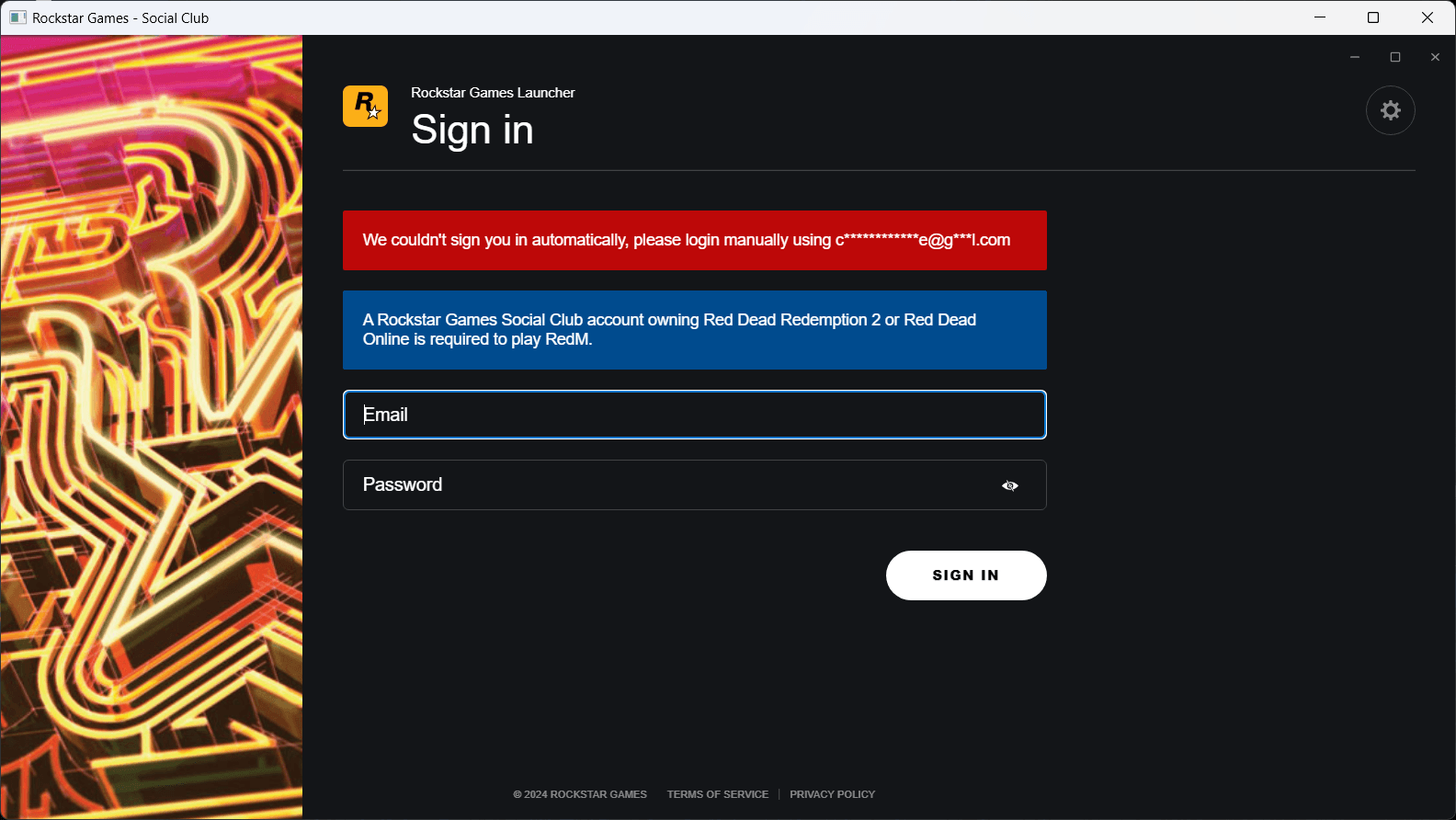 Enter your Rockstar Games account credentials (email and password) and click “Sign In.”, then click “Sign In” to proceed to the Rockstar Games 2FA page.
After entering your credentials, you’ll be prompted to enter a 2FA (Two-Factor Authentication) verification code. Ignore the 2FA code prompt for now. Instead, look for the yellow highlighted text that says “visit the support page” and click it.
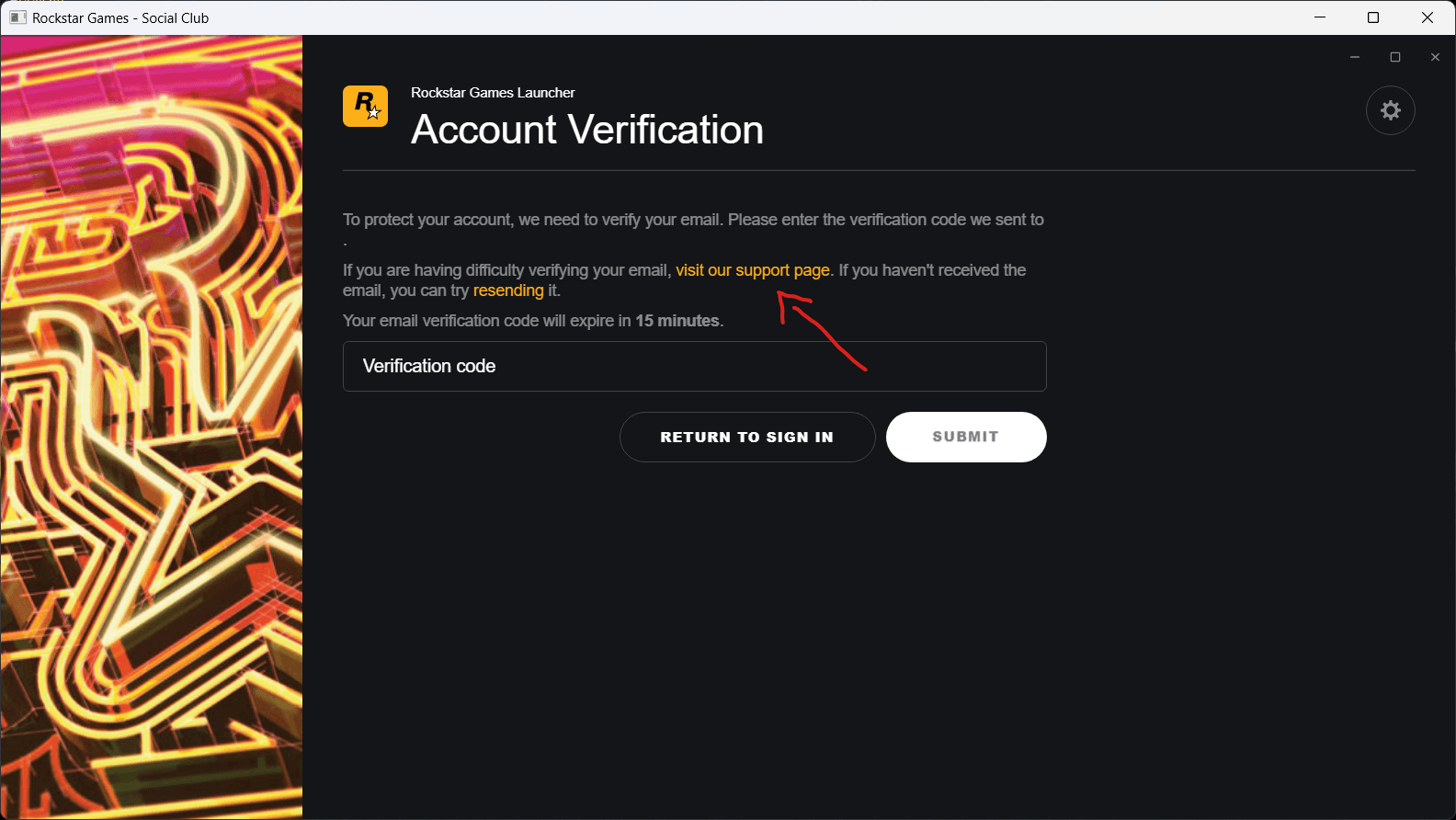 ### Step 3: Sign In on the Rockstar Support Page
You’ll be redirected to the Rockstar Games Support page.
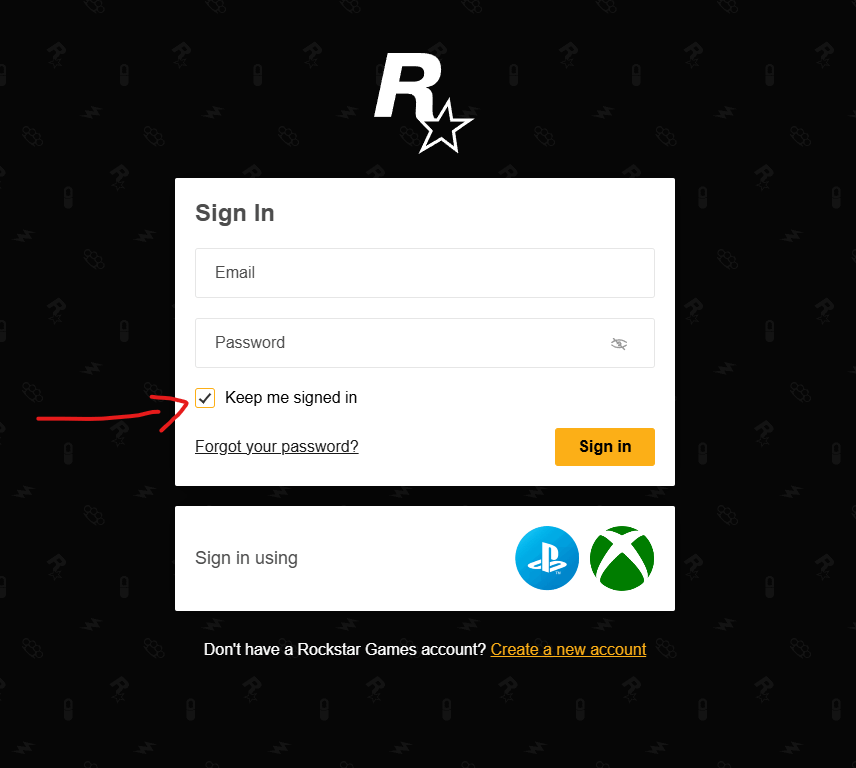
In the top-right corner, click the “SIGN IN” button.
Enter your Rockstar Games account credentials again.
Make sure to check the box for “Stay Signed In” to avoid future issues.
Complete the 2FA verification process if prompted.
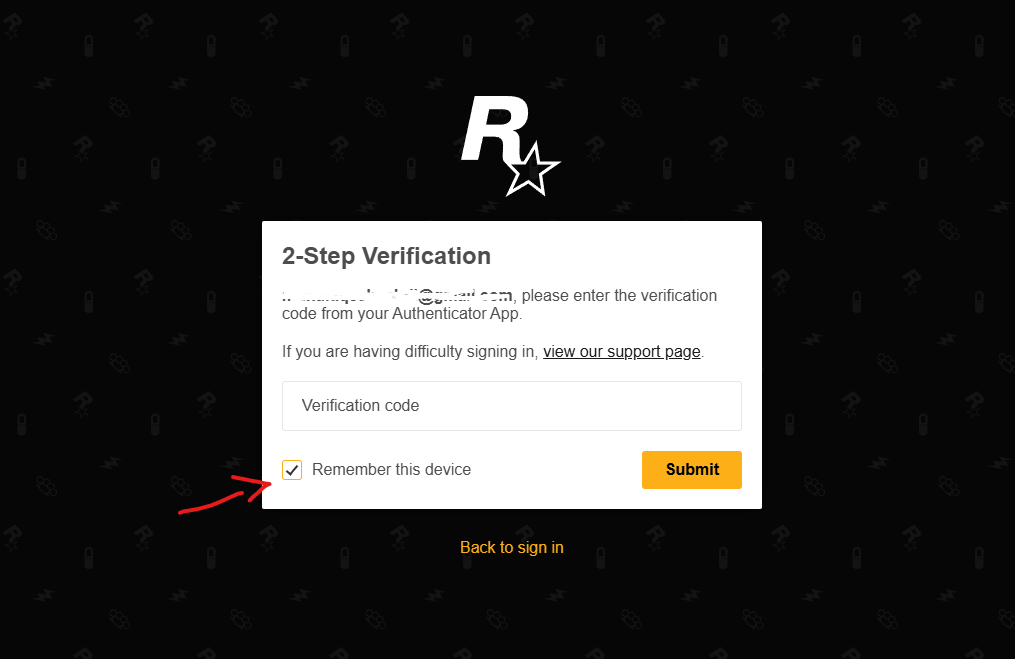
The issue often occurs due to a glitch in the Rockstar Games Launcher’s automatic sign-in process. By manually signing in through the support page and ensuring the “Stay Signed In” option is enabled, you bypass the automatic sign-in process that’s causing the error. This forces the launcher to recognize your credentials properly.
The “We couldn’t automatically sign you in” error in RedM can be frustrating, but it’s usually easy to fix by following the steps above. If you’ve tried everything and the issue persists, consider reaching out to Rockstar Games Support for further assistance.
Happy gaming! 🎮
Did this guide help you? Let me know in the comments below! If you have any other fixes or suggestions, feel free to share them with the community.
